Projects help you organize resources, users, and access permissions within your Public Cloud environment, which is why you will automatically have a Default Project created for your account.
How to Create a New Project
You can create up to 3 projects per account, including the default project that is created automatically:
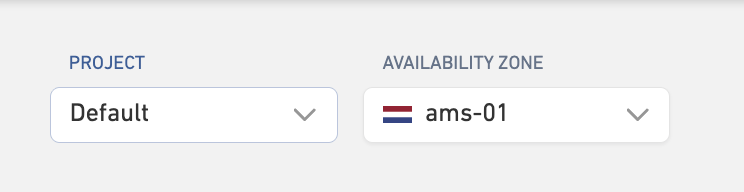
- Open the Project dropdown in the top navigation.
- Click New Project.
- You will be redirected to the Project Settings page.
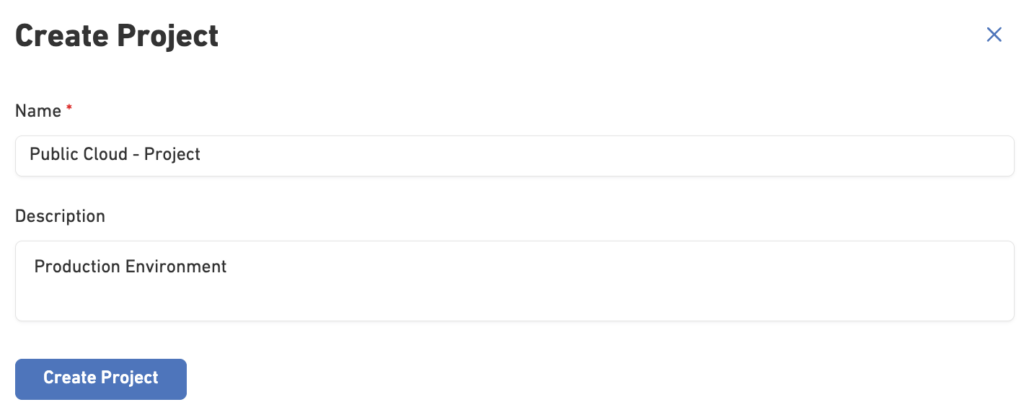
- Enter:
- Project Name: A unique name for your project.
- Description: Optional information describing the purpose of the project.
- Click Create Project.
How to Manage Projects
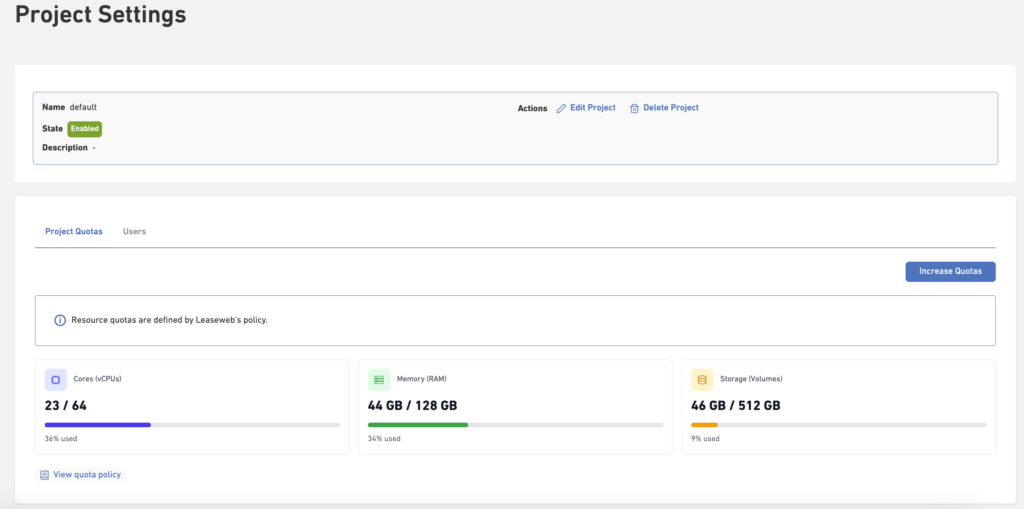
The Project Settings page allows you to manage all project-related resources and permissions. Within a project, you can view and manage project quotas, SSH keys and users.
How to Manage Project Quotas
Project quotas define the resources available to the project, such as:
- vCPUs
- RAM
- Volumes
These quotas determine how many resources can be created within the project. Each project comes with the following default resource quotas:
| Resource | Default Quota |
|---|---|
| vCPU Cores | 64 |
| RAM | 131,072 MB (128 GB) |
| Volume Storage | 512 GB |
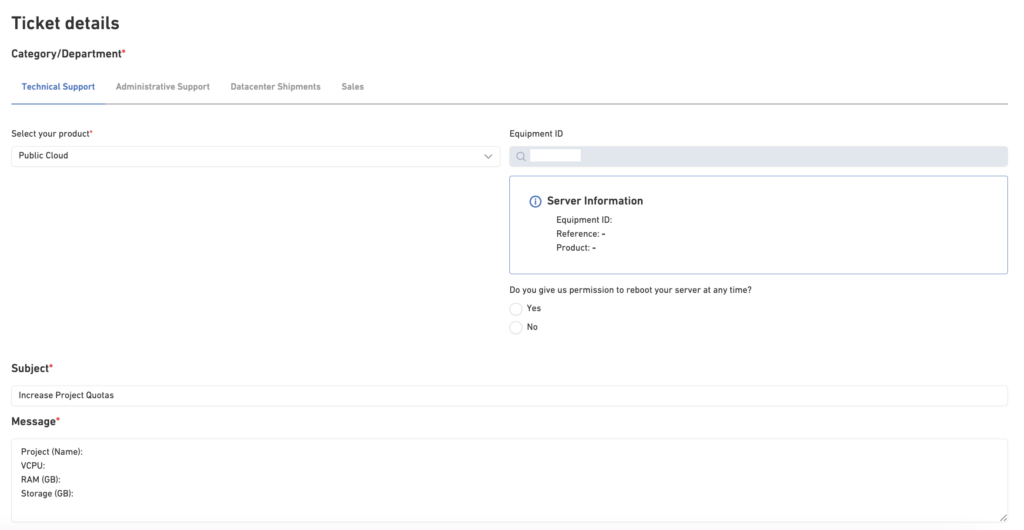
These quotas define the maximum amount of compute, memory, and storage resources that can be allocated within a project. If you require additional resources, you can request a quota increase through our support, by opening a ticket from the Customer Portal.
To increase your quotas, go to Settings, select the project for which you want to increase the quotas, and click Increase Quotas.
A new pop-up will appear, where you can specify the quota limits you would like to set for your project.
After your request has been reviewed, you will receive a confirmation in the ticket.
How to Manage SSH Keys
SSH keys can be managed at the project level and are used to securely access instances created within that project.
From the SSH Keys section, you can:
- View existing SSH keys
- Add new SSH keys
- Remove unused SSH keys
How to Manage Project Users
Users determine who can access and manage resources within a project.
To use the OpenStack API, you must first create a user account. Each user has their own credentials for authenticating with the API and managing resources.
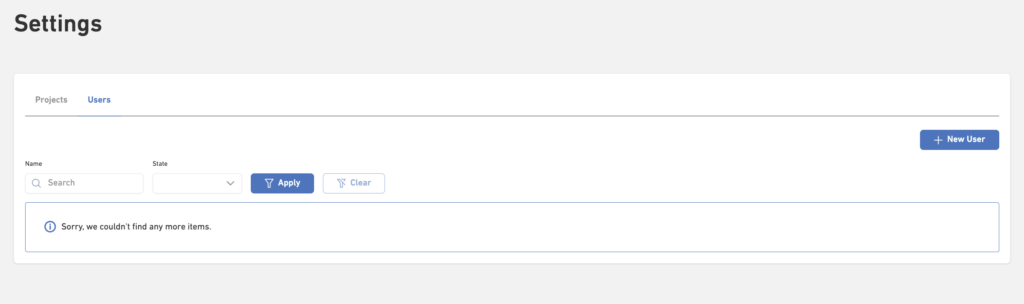
You can create multiple users to collaborate within the same project.
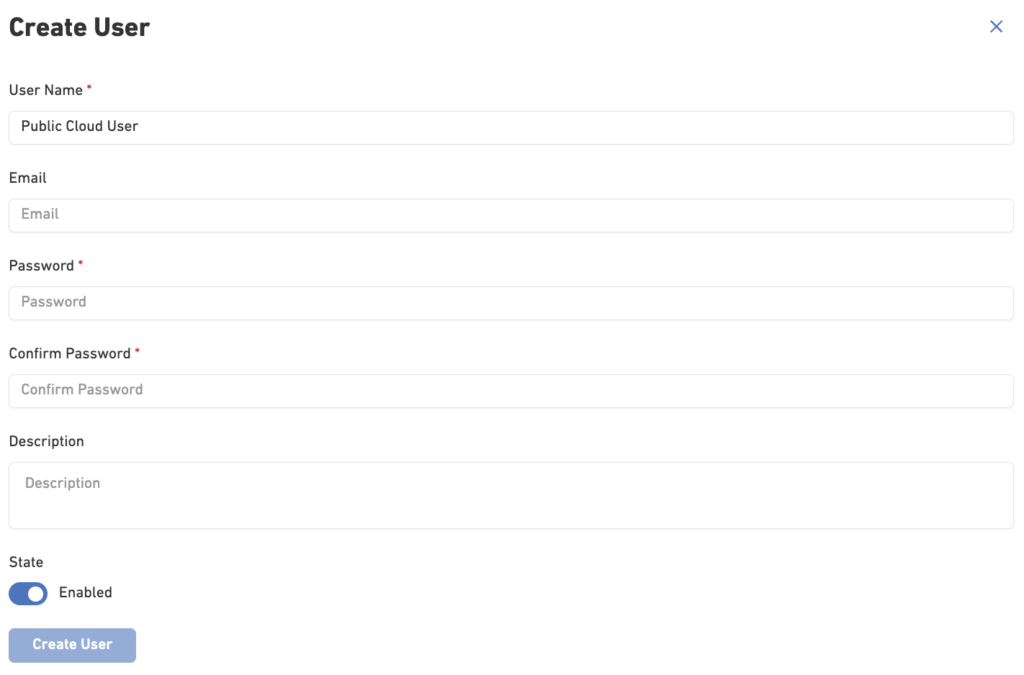
From the Users section, you can:
- View project members
- Add users to the project
- Remove users from the project
Example Project Use Cases
You may choose to separate workloads into different projects, for example:
| Project | Purpose |
|---|---|
| Production | Customer-facing workloads |
| Development | Testing and development environments |
| Internal Tools | Monitoring, automation, and internal services |
Using separate projects helps keep resources organized while providing clear visibility into quotas, users, and access management.