Bare metal servers deliver raw performance and give full control. Every workload, application, and service running on a Dedicated Server depends directly on the health of its physical components. Therefore, bare metal servers need reliable health monitoring.
Native hardware monitoring via IPMI
Leaseweb provides hardware monitoring for bare metal servers:
The hardware health metrics are collected directly from the server’s management interface (IPMI) – so you don’t need to install an agent on your operating system.
Key Features
1. Agentless by design
All the metrics are collected from the IPMI interface of the server. Therefore, there is no software or agent running on the your operating system.
2. Hardware-native data
The server’s BMC reads the metrics directly from the server’s firmware and sensors, thereby ensuring accurate insight into the physical state of the machine.
3. Always available
Since IPMI runs independently of the OS, hardware health metrics remain visible even when the server is powered off, rebooting, or in a faulty state.
How it works
Leaseweb adds a dedicated read-only IPMI user called “lswhwmon” to your server. This user is exclusively used to collect hardware metrics for monitoring.
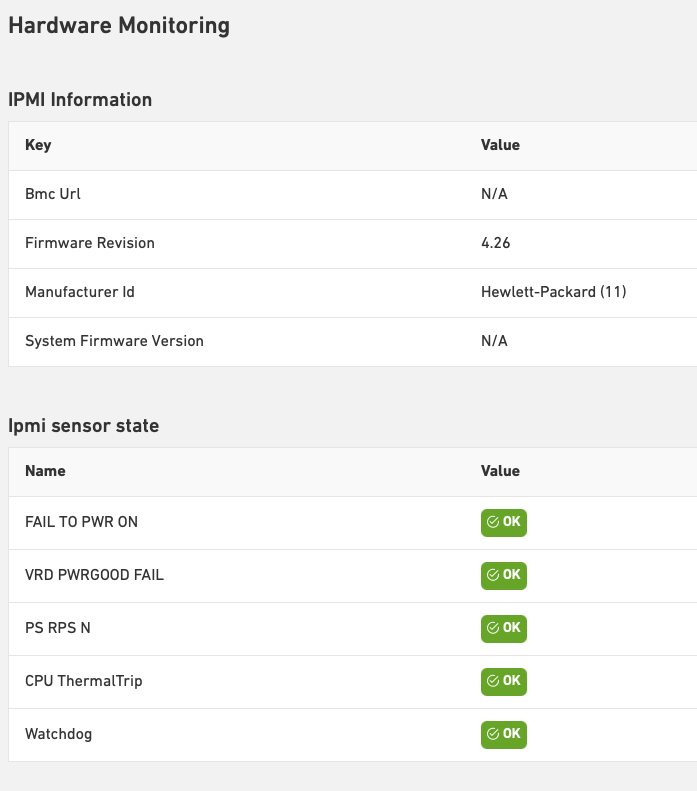
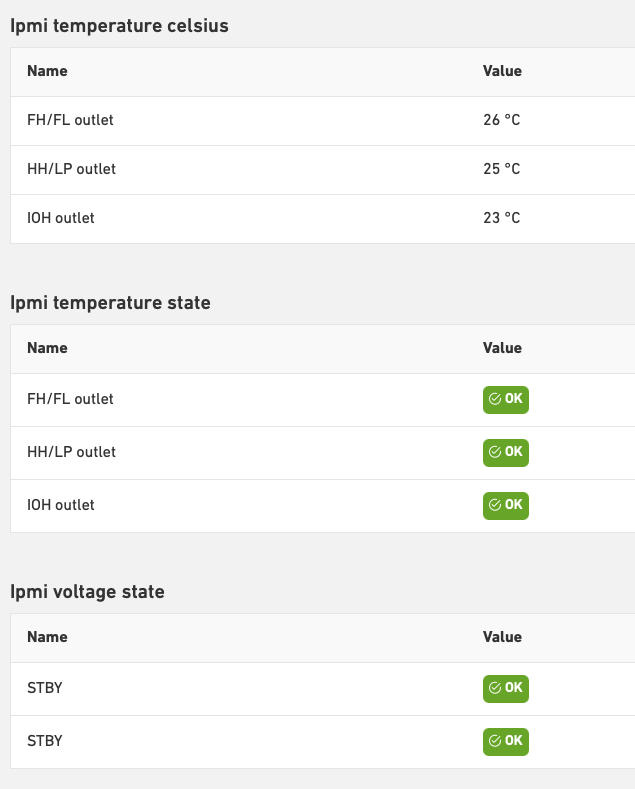
Monitored metrics include:
- Temperature readings
- Power consumption
- Fan status
- Other system health indicators
Each server exposes different metrics depending on the brand and the model.
Metrics refresh every 5 minutes. You can view them in the Customer Portal under Usage → Hardware Monitoring, or through the API.

Check if hardware monitoring is enabled
- Login to the Customer Portal and go to Dedicated Servers
- Open the server you want to check
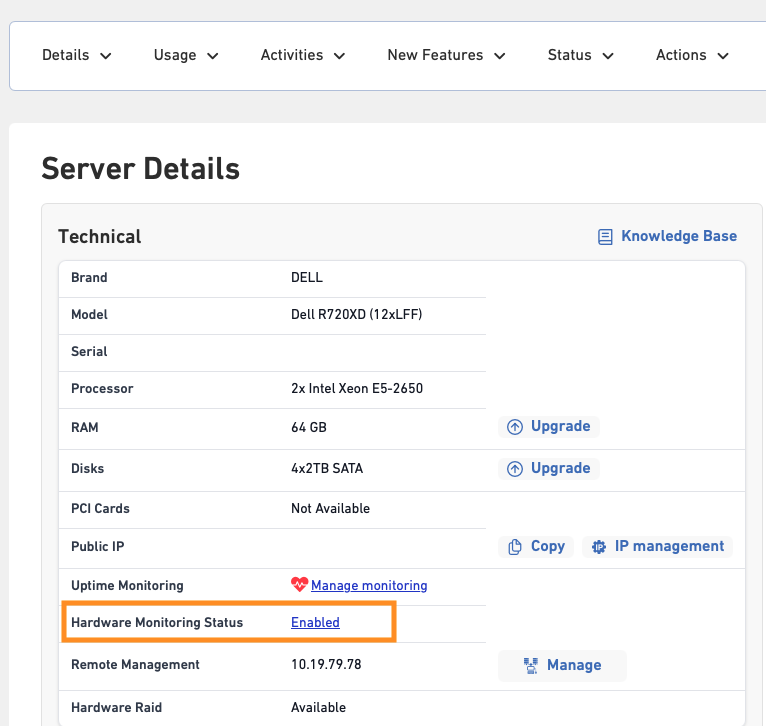
- On the server details page, find Hardware Monitoring Status:
- Enabled: Monitoring is active. You can view the metrics under Usage -> Hardware Monitoring
- Disabled: Monitoring is not active. Enable it with one of the two methods below.
Information 
- Servers delivered on after 1 February 2026 have hardware monitoring enabled by default.
- For servers delivered before 1 February 2026, you have to manually enable hardware monitoring. See Enable hardware monitoring
Enable Hardware Monitoring
There are two ways to enable hardware monitoring. Pick the one that suits you best:
Method 1: IPMI Reset (Reboot required)
An IPMI reset restores your server’s IPMI interface to a state that is compatible with Leaseweb automation. As part of the rest, the “lswhwmon” user is created automatically.
Please note that an IPMI reset reboots your server. The contents of your hard drives are not touched.
Warning — an IPMI reset wipes your BMC configuration
An IPMI reset restores the management controller (iDRAC / iLO / BMC) to a Leaseweb-standard state. Any custom settings you have made in the iLO or iDRAC interface will be lost, including:
- Custom users and passwords you created (the default
admincredentials are restored) - Alerting, SNMP, email/SMTP and syslog configuration
- Any other personalised BMC settings
If you rely on any of these, note them down before you start so you can re-apply them afterwards — or use Method 2 instead, which changes nothing else on the BMC.
Perform IPMI Reset from the Customer Portal
- Log in to the Customer Portal and go to Dedicated Servers.
- Open the server.
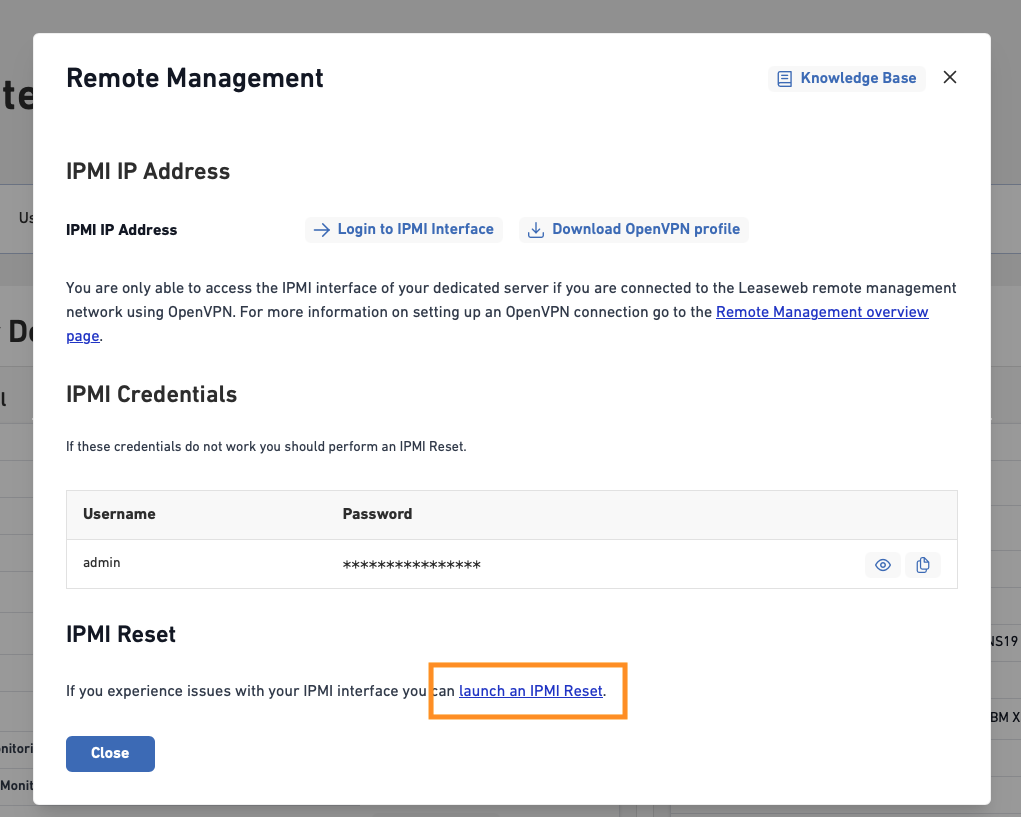
- Select Actions → Remote Management.
- In the pop-up, scroll to the IPMI Reset section and click launch an IPMI Reset.
- Confirm the reset. The server reboots and the reset runs automatically.
- When the job is done, check that Hardware Monitoring Status shows Enabled.
Perform IPMI Reset through the API
curl -X POST \
  -H "X-LSW-Auth: [YOUR_API_KEY]" \
  -H "Content-Type: application/json" \
  -d '{"powerCycle": true}' \
  https://api.leaseweb.com/bareMetals/v2/servers/[SERVER_ID]/ipmiReset
powerCycle (default true): reboots the server automatically. If you set it to false, the reset only finishes after you reboot the server yourself.
See the Dedicated Servers API reference for details.
Method 2: Add the IPMI user manually (no reboot)
If you don’t want to reboot the server, you can create the “lswhwmon” user yourself to enable the hardware monitoring. Your server stays online the whole time, and no other BMC settings are changed.
Step 1: Create the user in the remote management interface
- Log in to the remote management interface (the IP address is listed under Actions → Remote Management on the server details page).
- Navigate to the BMC settings. Depending on the brand this is called iDRAC Settings, iLO Settings, or similar.
- Go to user management.
- Add a new user with the following settings:
- Username:
lswhwmon - Password: anything secure — you’ll need it again in Step 2, so note it down temporarily.
- Role: User / Read Only (the exact name depends on the manufacturer)
- IPMI over LAN privilege: User / Read Only
- Serial Port privilege: User / Read Only
- Username:
- Save the user.
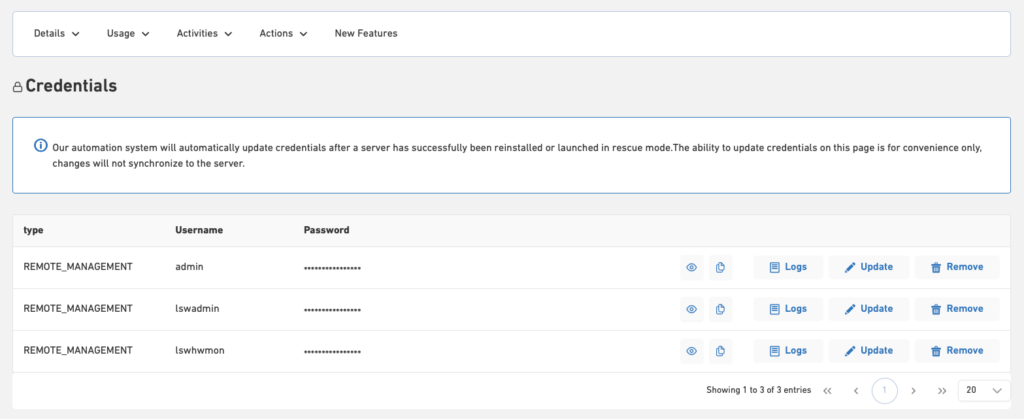
Step 2: Add the credentials in the Customer Portal
- In the Customer Portal, open the server and go to Details → Credentials.
- Add the credentials of the user you just created (username
lswhwmonand its password).
When will monitoring start?
- Manually created users are not picked up straight away. Leaseweb refreshes its list of monitoring targets once per night, so hardware monitoring will become available the following day. After that, Hardware Monitoring Status shows Enabled and metrics appear under Usage → Hardware Monitoring.
- Tip: Don’t reuse the password of another account. The
lswhwmonuser only needs read access — never give it administrator rights.