Description
This article explains how to schedule a visit to a data center, view your upcoming and past visits, and manage visitor profiles (including personalized badges) for the people who can access the data center on your behalf.
Contents
Opening Data Center Access
In the Leaseweb Customer Portal, go to Colocation > Data Center Access.
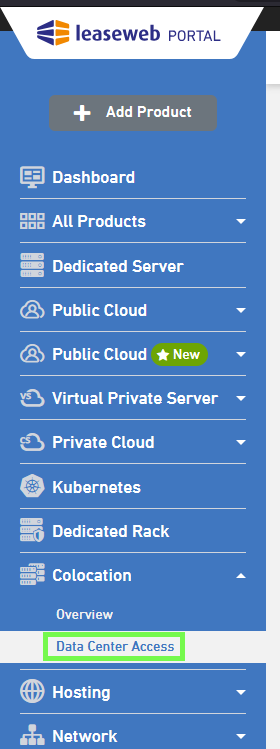
The page has three tabs:
- Upcoming Visits: visits that are scheduled or in progress.
- Past Visits: visits that have already started or ended.
- Access Management: the visitor profiles on your account.

Viewing Upcoming Visits
The Upcoming Visits tab lists visits that have not ended yet, starting with the soonest. Each row shows the Data Center, Visit date, Visitor and Visitor e-mail.
Click a row to see more:
- Requestor e-mail
- Mobile
- Ticket ID
- Racks – Access scope: the hall and rack that the visitor can access.
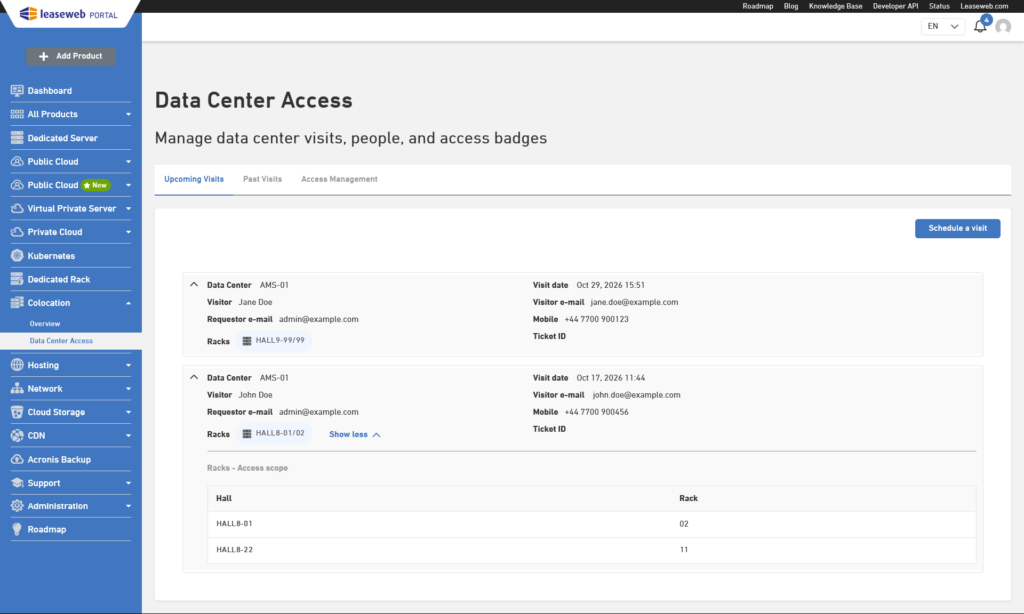
To plan a new visit, click Schedule a visit at the top. The steps are described in the next section.
Information
The Schedule a visit button only appears if you have at least one active colocation in a data center that accepts access requests through the Customer Portal.
Scheduling a visit
Warning
Requesting data center access through the Leaseweb Customer Portal is currently only available for the following locations: AMS-01, AMS-02, LON-01, LON-12, WDC-02, NYC-01 and PHX-01.
For access to our other data centers, please create a Support ticket from the Leaseweb Customer Portal.
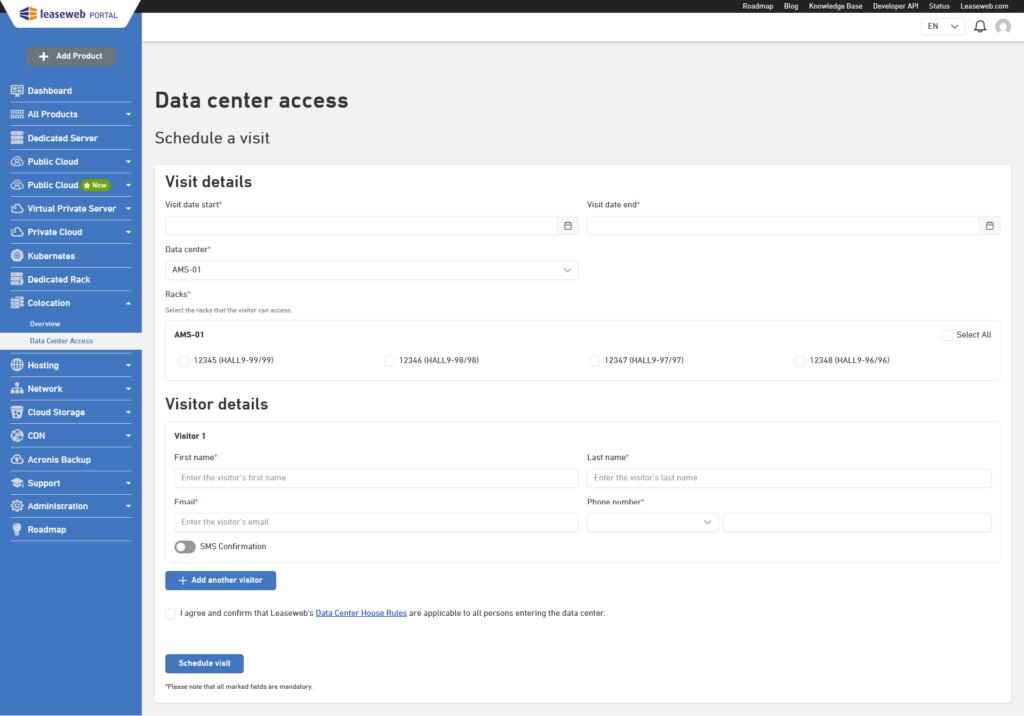
- On the Upcoming Visits tab, click Schedule a visit. The Schedule a visit page opens.
- Under Visit details, fill in:
- Visit date start and Visit date end. Use the data center’s local time.
- Data center: the data center you want to visit.
- Racks: the racks the visitor may access. Select at least one rack, or click Select All.
- Under Visitor details, enter each visitor’s First name, Last name, Email and Phone number (country code and number).
- Some data centers also require Citizenship. If you select Other, you also need to select a Country.
- To add more people, click Add another visitor. You can add up to 3 visitors per request. To take someone off the request, click Remove.
- If you cannot see the button then it’s either not available in the selected Data Center or disabled by your administrator.
- Select the checkbox to agree to Leaseweb’s Data Center House Rules.
Warning
When scheduling a visit, before you click the Schedule visit button, you can view the link to Leaseweb’s Data Center House Rules. Please be aware that individual data center rules are also applicable.
- Click Schedule visit.
Information
Please note that a confirmation email will be send with all the necessary information required to access the data center.
Viewing Past Visits
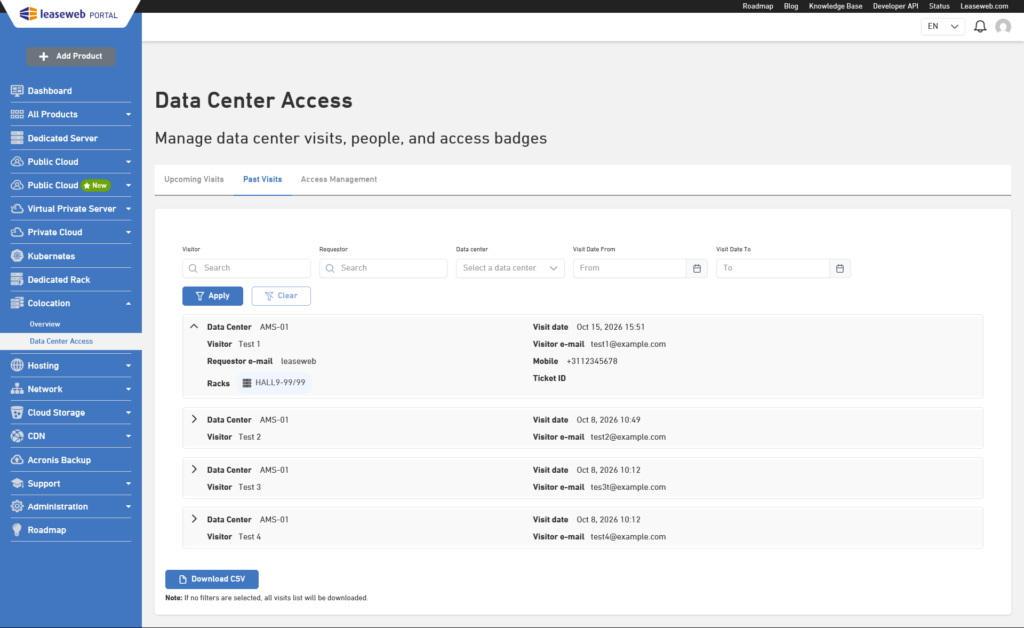
The Past Visits tab lists visits that have already started.
To download the list, click Download CSV. The file includes every visit that matches the filters you applied, across all pages. If no filters are applied, it includes all past visits.
Managing visitor profiles (Access Management)
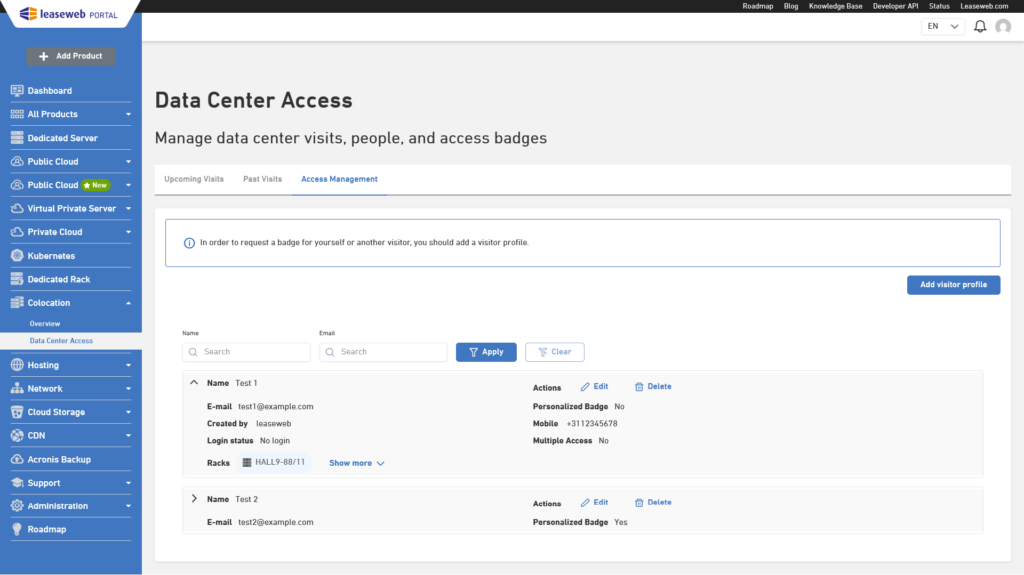
On the Access Management tab you can manage the visitor profiles on your account and request personalized badges. A visitor profile can include its own Customer Portal login, which only lets that person request data center access on your behalf.
Each row shows the Name, E-mail and Personalized Badge status. Click a row to see more:
- Created by
- Mobile
- Login status: No login, Pending, Enabled or Disabled.
- Multiple Access: whether the person can bring visitors.
- Racks: the hall and rack the profile has access to.
Warning
Personalized badges can ONLY be ordered by Private Colocation customers. This feature is not available for Shared Racks.
Currently, only the Master User of the account can request personalized badges through the Leaseweb Customer Portal, and only for AMS-01.
Adding a visitor profile
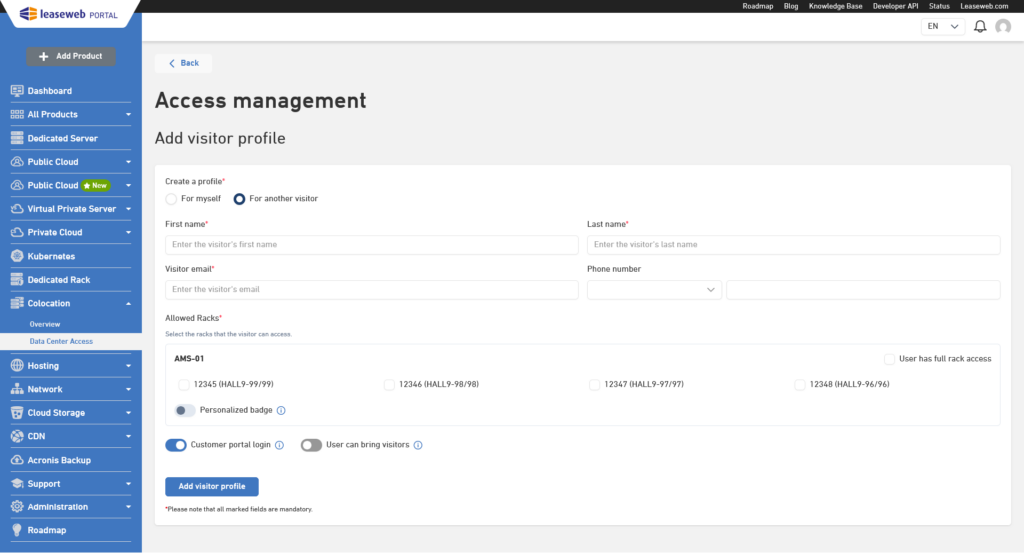
- On the Access Management tab, click Add visitor profile.
- Under Request a badge, choose:
- For myself: creates your own profile. Your name and email are taken from your Customer Portal account.
- For another visitor: creates a profile for someone else, such as a colleague or one of your end-customers. You are responsible for anyone you request a badge for.
Information
If you already have a profile of your own, the message “Your profile has already been created” is shown. You can then update your profile instead.
- Enter the First name, Last name, Visitor email and, where needed, the Phone number.
A phone number is required for a personalized badge and at data centers that need one.Information
When you request a badge, your first and last name must match the legal name on your identification document.
- Under Allowed Racks, select the racks the visitor may access. To select every rack you currently have at a data center, select User has full rack access.
Information
User has full rack access selects only the racks you have at that data center today. Racks you add later are not added automatically. To give the visitor access to a new rack, edit their profile and select it.
- Optional: set the following toggles.
- Personalized badge: request a personalized badge. This option is only shown when you select a Private Colocation rack at a location that issues personalized badges, and only the Master User can turn it on.
- Customer portal login: lets this person log in to the Customer Portal and request data center access.
- User can bring visitors: means that the person who is requesting access can bring extra persons to the datacenter.
- Click Add visitor profile. If you are creating a profile for yourself, the button is Add my profile.
Tip
Once ordered, the personalized badge will be ready for collection after one business day. The person receiving the badge must collect it in person from the data center with a government-issued ID. If the badge is not collected within 30 calendar days, it will expire for security reasons.
Before you visit the data center, you need to schedule a visit to the data center.
Also you can request badges for your end-customers. The person requesting the badge will be responsible for them.
Editing a visitor profile
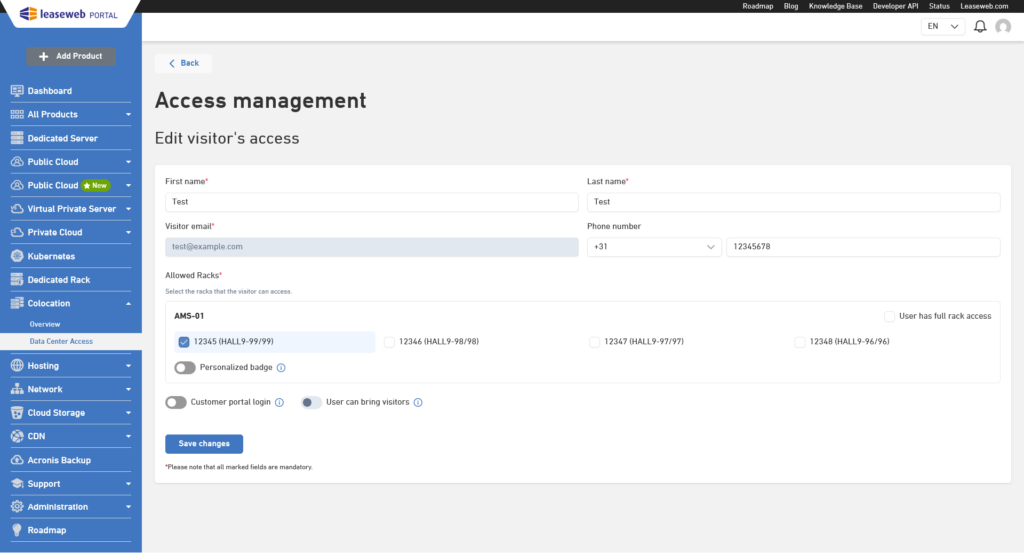
- Find the profile and click Edit (pencil icon).
- Change the name, phone number, allowed racks or toggles. The email address cannot be changed.
- Click Save changes.
Enabling or disabling a visitor profile
Perform the following steps to disable or enable a visitor profile:
- Find the profile and click Disable (or Enable).

- In the confirmation window, click Disable (or Enable) again.
Warning
Disabling a visitor profile disables both the person’s Customer Portal login and, when the location is AMS-01, their personalized badge.
Disabling a personalized badge
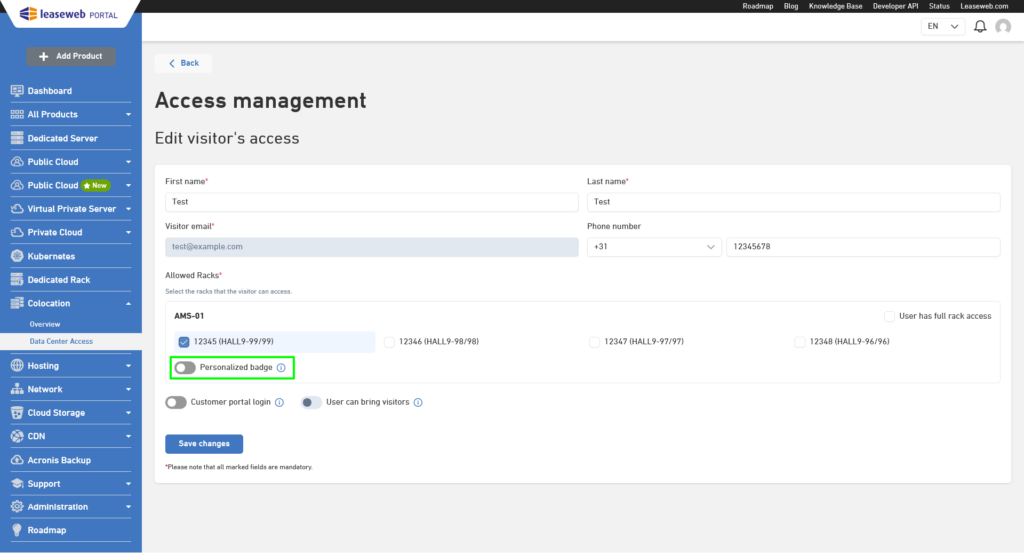
You can turn off just the personalized badge and keep the rest of the visitor profile (login, racks, visits) as it is.
- Find the visitor profile and click Edit (pencil icon).
- Under Allowed Racks, turn off Personalized badge.
- Click Save changes.
Deleting a visitor profile
Perform the following steps to remove a user:
- Find the profile and click Delete

- Confirm your action and the user will be deleted and all the necessary actions will be taken in the background.
Warning
Please note that deleting a user will trigger an event to disable the access badge tied to the removed user when the location is AMS-01.