3 min read
Overview
Savings Plans help you reduce costs for your Public Cloud resources by committing to a fixed amount of resources for a defined period.
In return, you receive discounted pricing on eligible resources compared to standard on-demand rates.
Savings Plans are best suited for predictable and steady workloads where resource usage is stable over time.
Available Savings Plans
Savings Plans are available for the following resources:
| Instances (V3 -> V7) | Based on the number of instances covered by the plan |
| Storage (Performance or Value) | Based on the total allocated storage capacity (GB) |
| Public IP Addresses (IPv4) | Based on the number of Public IPv4 addresses covered by the plan |
How Savings Plans Work
When you purchase a Savings Plan, you commit to a specific quantity of resources.
Eligible resources created in your project are automatically matched against your Savings Plan.
As long as your usage stays within the purchased limits, those resources are covered by the plan and billed at the discounted rate. If your usage exceeds the purchased capacity, any additional resources are billed at standard on-demand pricing.
Savings Plan Discounts
| Contract Term | Discount Percentage |
|---|---|
| 1 Month | 10% discount on the hourly rate |
| 3 Months | Additional 3% discount on the discounted monthly rate |
| 6 Months | Additional 5% discount on the discounted monthly rate |
| 12 Months | Additional 10% discount on the discounted monthly rate |
| 24 Months | Additional 20% discount on the discounted monthly rate |
| 36 Months | Additional 25% discount on the discounted monthly rate |
| Billing Term | Discount Percentage |
|---|---|
| Quarterly | Additional 2% discount on the discounted monthly rate |
| Semi-annually | Additional 3% discount on the discounted monthly rate |
| Annually | Additional 5% discount on the discounted monthly rate |
Using Savings Plans
Savings Plans are created through the Leaseweb Customer Portal. There are two ways to create a Savings Plan:
- With an end date: the Savings Plan expires automatically on the selected end date
- Without an end date: the Savings Plan automatically renews each billing period until it is cancelled
Billing
- After purchasing a Savings Plan, it becomes active the same day at 00:00.
- For the initial partial month, billing is calculated on a pro-rated basis. After that, the Savings Plan follows the standard monthly billing cycle.
- The official contract start date is the first day of the month at 00:00, in line with Leaseweb’s standard contract model.
Purchasing a Savings Plan

To purchase a Savings Plan:
- Log in to the Leaseweb Customer Portal.
- Navigate to Public Cloud.
- Open the Savings Plans section.
- Select the resource type (Instances, Storage, or IPv4).
- Choose the desired capacity and commitment period.
- Review and confirm your purchase.
Changing the Savings Plan
Savings Plans cannot be upgraded or downgraded after they have been created.
If you need a different capacity, you must:
- Create a new Savings Plan with the desired additional capacity.
Canceling the Savings Plan
You can cancel your Savings Plan through the Portal:
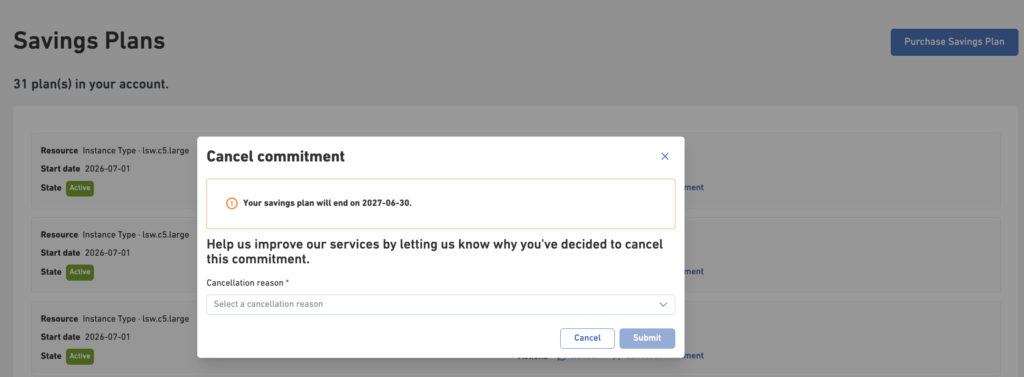
When you cancel a Savings Plan:
- The Savings Plan remains active until its earliest possible end date.
- Your running resources are not affected and continue operating normally.
- Once the Savings Plan expires, eligible resources automatically revert to hourly usage billing from the first day of the following month, unless they are covered by another active Savings Plan of the same resource type.