This article explains how to migrate your existing redirects from the Old Redirect Platform to the New Redirect Platform.
Overview
We have introduced a new redirect platform with improved capabilities and HTTPS support. Since this migration is not automated, customers must manually recreate their redirects in the new platform.
Important notes before you begin
The old platform is still available for:
- Viewing your existing redirects
- Updating your existing redirects
- Deleting your existing redirects
- You cannot create new redirects in the old platform anymore
- All new redirects must be created in the new platform
What changed?
Old redirect platform
- Supported HTTP only
New redirect platform
- Supports both HTTP and HTTPS
- You can enable HTTPS using Let’s Encrypt (free SSL)
- Redirects can only be created for the domains that have an active domain contract.
Migration steps
Migrate Redirects from the old portal to the new portal
- Log in to Customer Portal
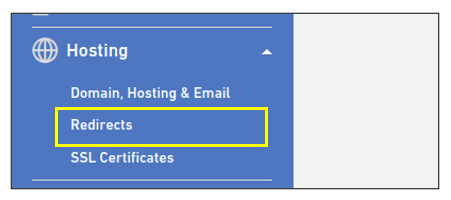
- Click on “Redirects” from the left menu
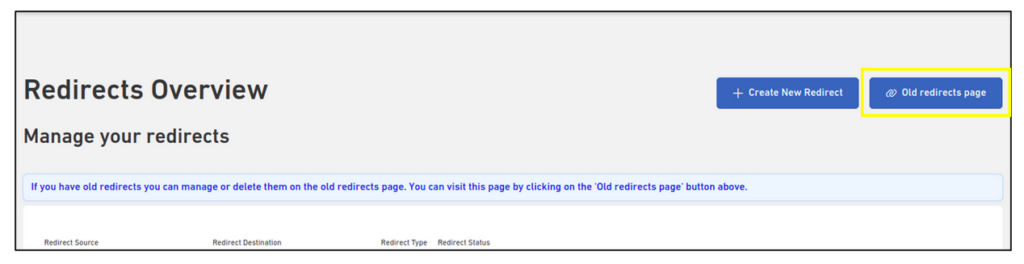
- Click on the “Old redirects page” button in the top right of the page. This will navigate to the old redirects page.
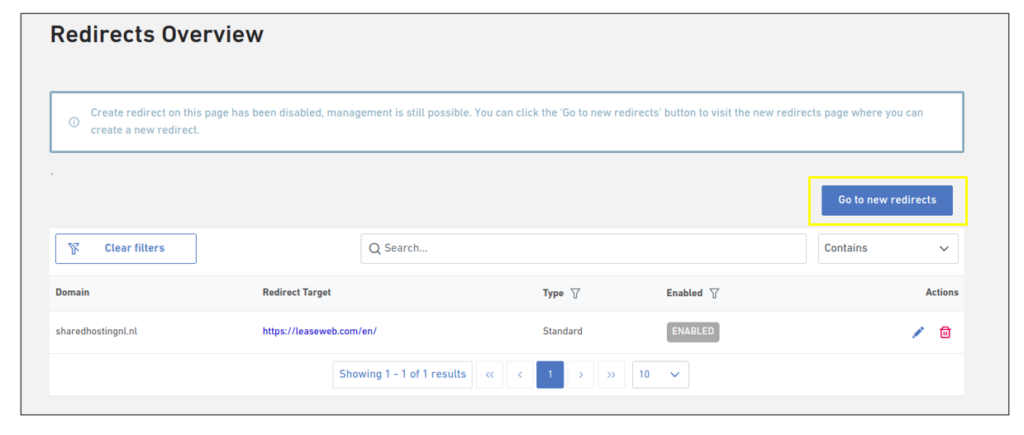
- In the old redirect page, note down the following values of the redirect that you want to migrate:
- Domain
- Redirect Target
- Type
- Click the “Go to new redirects” button in the top right of the page. This will take you back to the new redirects page
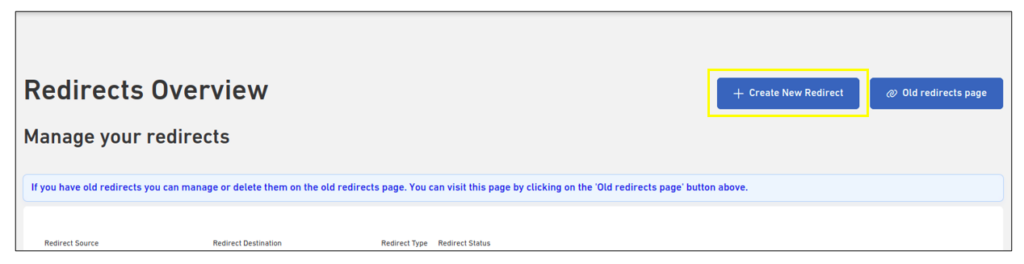
- Click the “Create New Redirect” button in the top right
- Follow the steps from here: Adding a new redirect
Information
When creating a redirect in the new page, you will notice that some field names are slightly different from the old redirect page. Use the guide below to understand what to enter:
Old page
Domain
Redirect Target
Type
New page
-> Select the domain from the Redirect Source drop-down box
-> Enter this in the Redirect Destination
-> Select the option under Redirect Type
Update DNS configuration
Your next step depends on where your DNS is managed.
DNS managed by Leaseweb
If your domain uses Leaseweb nameservers, then:
- Go to the hosting overview page
- Search for the domain name
- Click on Manage DNS
- Update or create an A record to point to the new redirect platform IP address
DNS managed by an external provider
If your DNS is managed externally, then log in to your DNS provider. And update or create an A record to point to the new redirect platform IP address.
Information
DNS Propagation
- DNS changes may take time to propagate (typically a few minutes up to 24 hours)
- During this time, redirects may behave inconsistently
Secure your redirect (HTTPS)
To make your redirect more secure, you can enable HTTPS using the Let’s Encrypt SSL certificate.
In the new redirect platform, this can be done from the Secure page. For step-by-step instructions, please refer to this guide.
Possible downtime/break scenarios
Migration is generally smooth, but issues may occur in the following cases:
- DNS not updated: Redirect will continue pointing to the old platform. The new redirect will not work.
- Incorrect IP Address: Redirect may fail. The domain may not resolve properly.
- Delay in DNS Propagation: Temporary inconsistent behavior, some users may see the old redirect, others may see the new.
- HTTPS Not Enabled: Redirect may fail for HTTPS requests. The browser may show security warnings.
- Old Platform Dependency: If you delete the old redirect before the DNS update completes, this may stop the redirect from working as expected.
To avoid these issues, always follow the best practices:
- Create the redirect in the new platform first
- Update the DNS
- Verify the redirect is working
- Only then, remove the old redirect