Welcome to Kubernetes! This guide is designed to help new users get started with their cluster.
Before diving into the details, make sure you have completed the following initial steps:
- Order and receive your Kubernetes cluster. Instructions for requesting a cluster can be found here.
- Install the
kubectlcommand-line tool and download your Kubernetes configuration file (kubeconfig).
Continue reading below for a more detailed walkthrough of each step.
Getting started with a Kubernetes cluster
- Before getting started, ensure you have already done the following:
- Order and received your cluster – see here
- Make sure that your cluster has been successfully delivered. After delivery, the cluster status in the customer portal should appear as “New.”
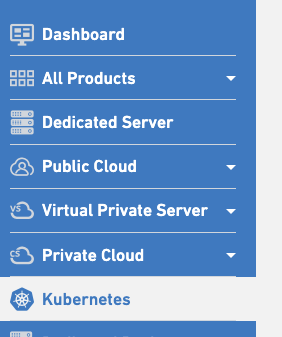
- Log in to the Leaseweb Customer Portal, and on the left panel, select Kubernetes
- You will need to configure your new cluster. Please refer to the configuration guide here
- After your cluster reaches the Ready status, in the ACTIONS field, click the Download kubeconfig link to download your KubeConfig. Download and save this file to $HOME/.kube/config to be discovered by the kubectl command line.

- You need to install the Kubectl client. You can follow the instructions here to install it:
https://kubernetes.io/docs/tasks/tools/#kubectl- You can verify with the command
kubectl versionto make sure the kubectl client works.
- You can verify with the command
- Once you have downloaded your Kubernetes configuration at the right place, you should be good to go. You can follow this documentation to get your application up and running.
https://kubernetes.io/docs/tutorials/kubernetes-basics/deploy-app/deploy-intro/
Further Considerations
Access Control
Initial access to a Kubernetes cluster is granted using highly privileged credentials ( kubeconfig that maps to a cluster-admin role). While this makes it easier to get started, it also means that anyone with access to this kubeconfig can perform any action on the cluster, including destructive ones.
If these credentials are leaked or shared unintentionally, the entire cluster may be compromised.
As a best practice, you should:
- Avoid using
cluster-admincredentials for day-to-day operations. - Create dedicated users or service accounts with least-privilege RBAC roles tailored to their responsibilities.
- Regularly review and rotate credentials to reduce long-term risk.
For more details on defining users, roles, and permissions, refer to the official Kubernetes documentation on RBAC.
For further information on how to create custom users and roles in the official Kubernetes documentation.
Security
It can be tempting to make cluster access more convenient by exposing services or management endpoints directly to the internet. However, doing so without proper safeguards significantly increases the attack surface of your cluster.
To keep access secure:
- Avoid exposing internal cluster management components publicly unless absolutely necessary.
- Prefer secure, temporary access methods such as
kubectlcommands that rely on your local kubeconfig. - Ensure your kubeconfig files are stored securely and never committed to version control.
- Use network controls, authentication, and authorization consistently across all cluster access paths.
A kubeconfig is effectively a key to your cluster—treat it with the same level of care as production credentials.
Kubernetes Dashboard
The Kubernetes Dashboard has been officially archived and is no longer maintained. Please check the “Alternatives to Kubernetes Dashboard” section to find the top alternatives.
On 21-January-2026, the ‘Kubernetes Dashboard’ project was hosted at “https://github.com/kubernetes/dashboard” and was moved to “https://github.com/kubernetes-retired/dashboard“. When the GitHub source repo was moved, the project stopped hosting the Helm charts that deploy it.
Alternatives to Kubernetes Dashboard
The Kubernetes Dashboard has historically provided a simple web UI for interacting with Kubernetes clusters. However, due to security concerns, limited extensibility, and reduced maintenance, it is no longer recommended for production use.
This section outlines the best alternatives and our top recommended alternatives to the Kubernetes Dashboard:
Lens
Often described as the “Kubernetes IDE,” it provides a powerful GUI for local cluster management, integrated terminal access, and multi-cluster switching.
Best for: Day-to-day cluster operations
Recommended when
You want a secure, ergonomic replacement for the Kubernetes Dashboard for engineers and operators.
Headlamp
The officially recommended successor by the Kubernetes SIG UI group. It is a CNCF Sandbox project offering a modern web interface, a robust plugin system, and the ability to run as both an in-cluster web app or a desktop client.
Best for: Secure, lightweight web UI
Recommended when
You need a secure, browser-based UI as a direct Dashboard replacement.
k9s (Terminal UI)
A terminal-based UI (TUI) for those who prefer working in the CLI. It is extremely fast and popular for day-to-day cluster navigation and resource monitoring.
Key characteristics
- Extremely fast
- No web UI exposure
- Excellent for live debugging and troubleshooting
Recommended when
You prefer terminal-centric workflows or operate in restricted environments.