This article walks you through restoring your RDP access to your Windows server. This issue is commonly encountered when you attempt to connect to a server with RDP over the internet, and you receive the following message:
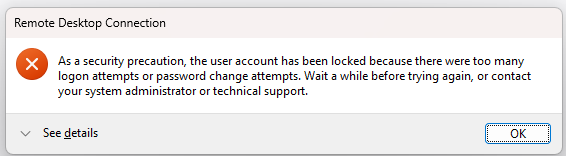
Why does this happen?
The internet is home to many malicious entities and automated bots that scan public networks for available servers. Once they find a server, they usually inundate it with numerous login attempts, trying to access services with easily guessable passwords.
The Remote Desktop Protocol (RDP) is a frequently targeted service that operates on port 3389 for both TCP and UDP. To protect against unauthorised access and bot attacks, Windows automatically blocks all login attempts after a certain number of failed login attempts.
If you find yourself unable to log in to your server using RDP, you may use out-of-band remote management tools such as iLO, iDRAC, or IPMI to access your Windows Server to make the necessary changes.
 Leaseweb provides out-of-band remote management behind a secure VPN for free, along with your dedicated server:
There are 2 methods that you can use to resolve this issue:
- Changing the Windows lockout rules/policy
- It is very important to note that the first method can potentially make your server more vulnerable. It essentially turns off the lockout rules built into Windows. This could lead to a malicious user attempting to log in via RDP an infinite number of times with nothing slowing them down.
- This makes it easier for bots or attackers to brute-force or guess your server’s Administrator password.
 If you go this route, we highly recommend that you lock your RDP port to only specific IP addresses. See here for more details.
- Creating a second administrator-level account
- This method is much more secure, as an attacker or bot would not know the username of this secondary account and would not be able to lock it by attempting to log in many times. You would also not be disabling Windows lockout rules.
Method 1: Temporarily disabling the Windows lockout rules
- Click on the Start menu and search for Local Security Policy
- To search, just start typing what you are searching for after clicking on the start menu
- Click on it to open
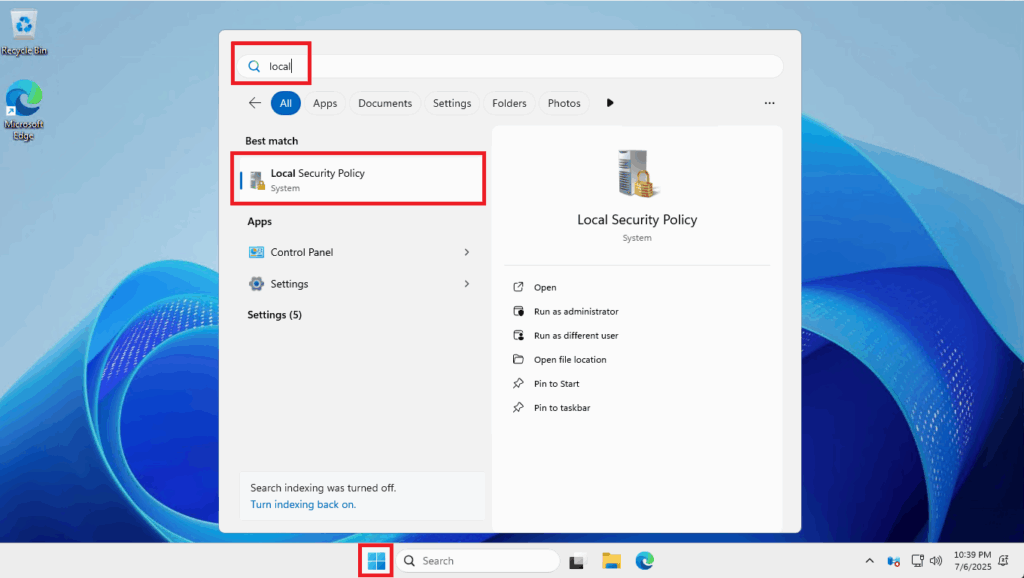
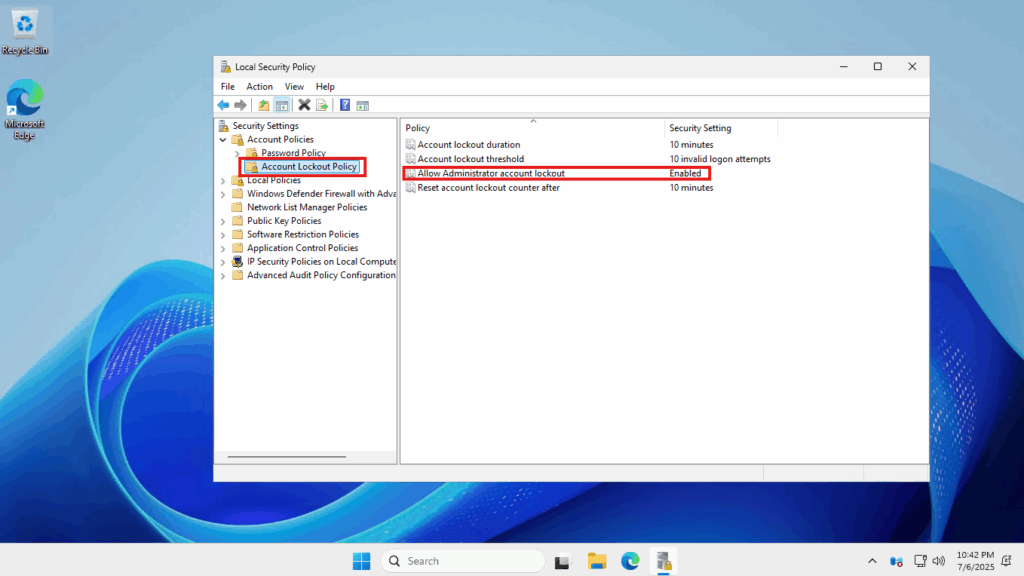
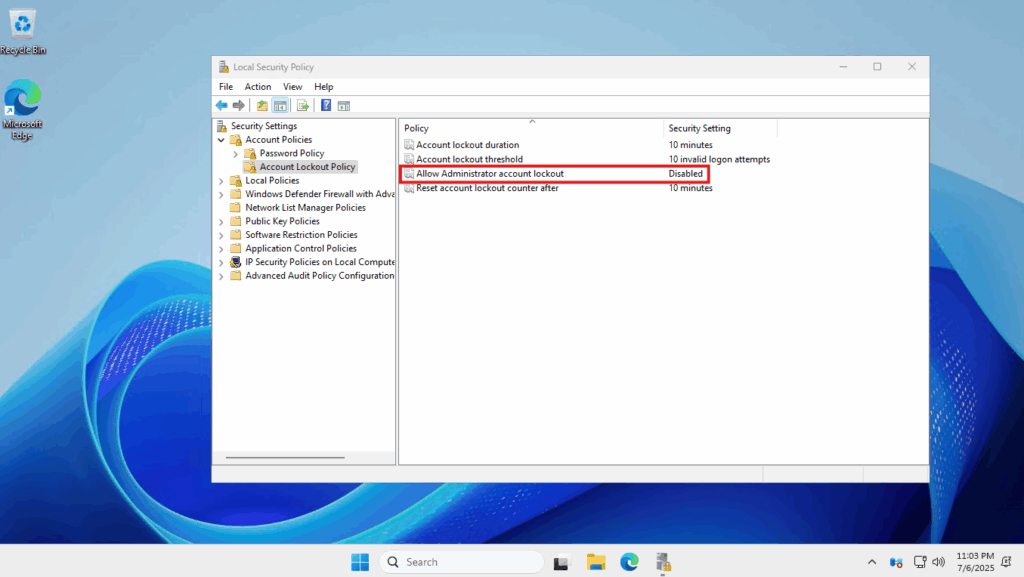
- Use the left side panel and navigate to: Security Settings -> Account Policies -> Account Lockout Policy
- You will see a setting called Allow Administrator account lockout
- Double-click on it to open
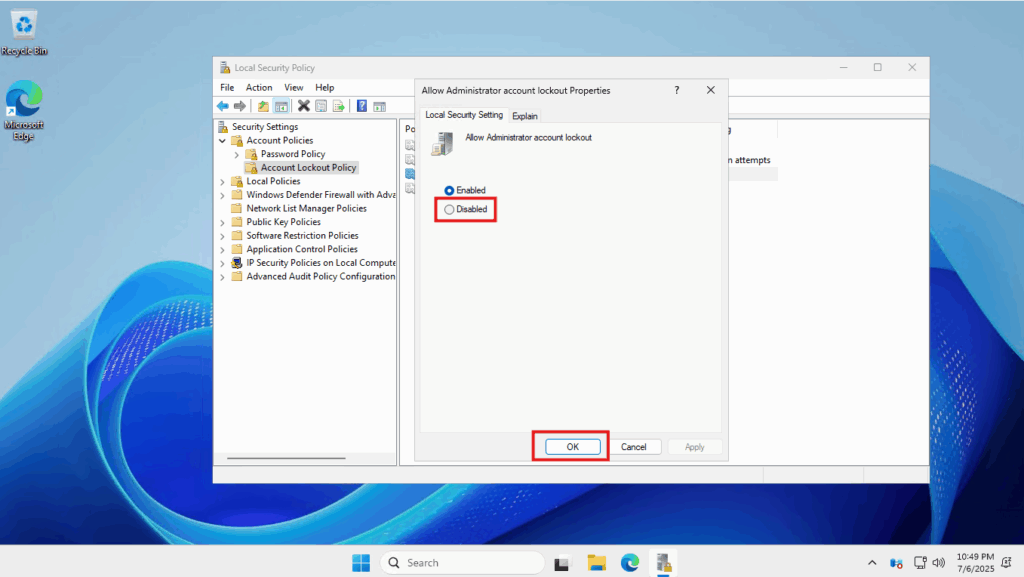
- Here, you will have the option of enabling or disabling it
- When it is enabled, the server can lock out the administrator account
- When it is disabled, the server will not trigger this lockout policy, no matter how many failed attempts. Select Disabled and click Ok.
- You will notice that the policy is displayed as Disabled – the Administrator account will not lock out any longer.
Method 2: Creating a secondary Administrative-level user
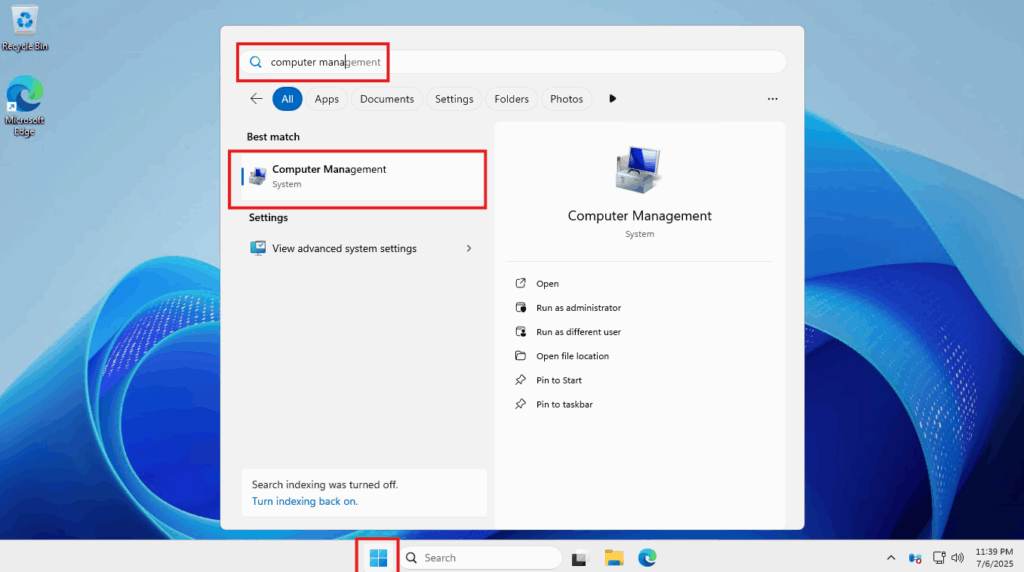
- Click on the Start menu and then search for Computer Management
- To search, just start typing what you are searching for after clicking on the start menu
- Click on it to open
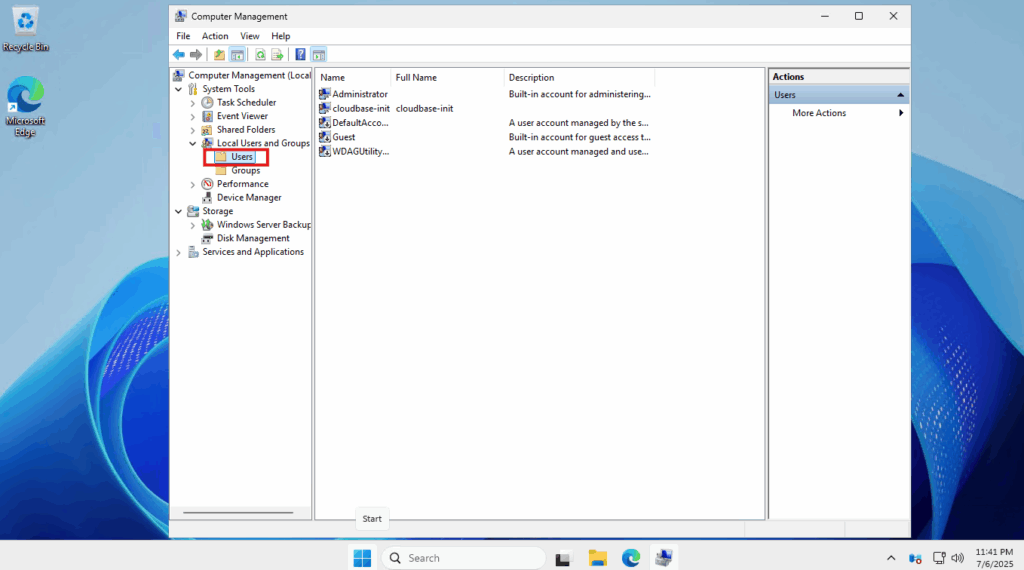
- Use the left side panel and navigate to: Computer Management (Local) -> System Tools -> Local Users and Computers -> Users
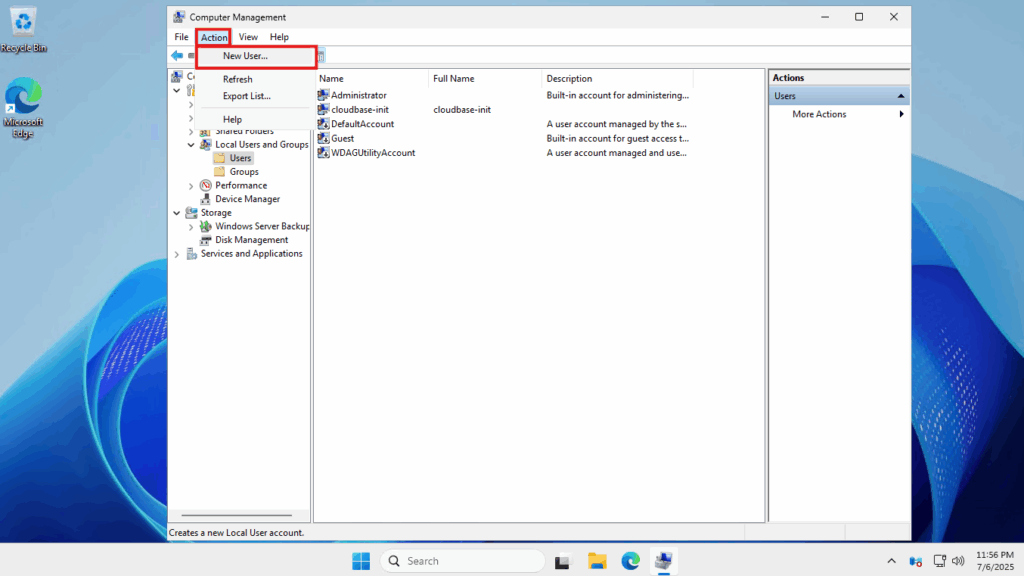
- Click on the Action button up at the top and then select New User from the drop-down menu
- The new user form will open in a new window. Enter the required details:
- Use a username that is not easy to guess. Avoid things like “admin”, “root” or anything guessable. For this example, we will use something generic like “owner”
- Enter a strong password. Generally, the longer it is, the less likely it is to be guessed or brute forced. If you do not want the password to expire and always be the same password, you can uncheck the Password never expires box. Do not that this is not recommended for an account that is used frequently from many different systems.
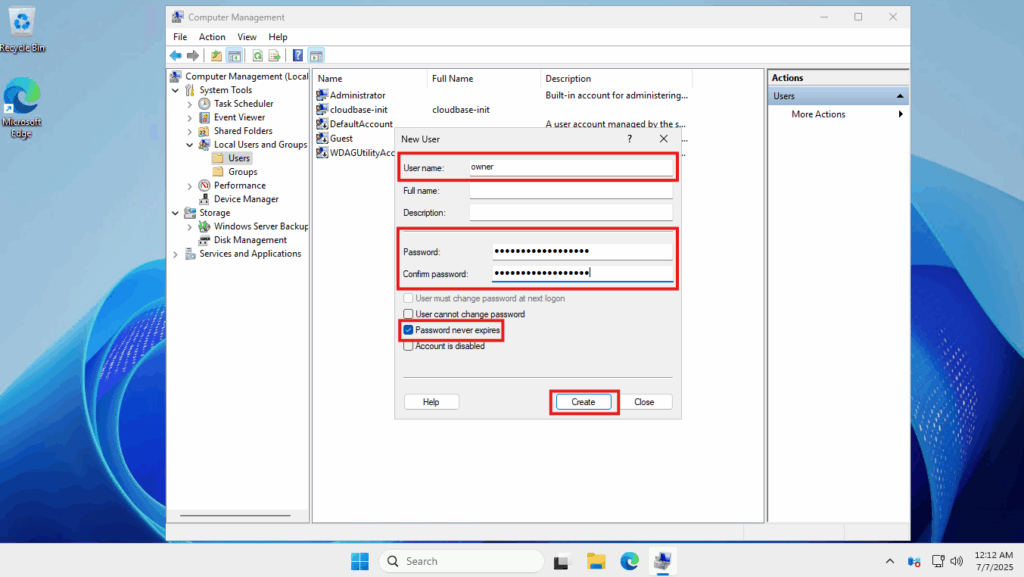
- Click Create once done
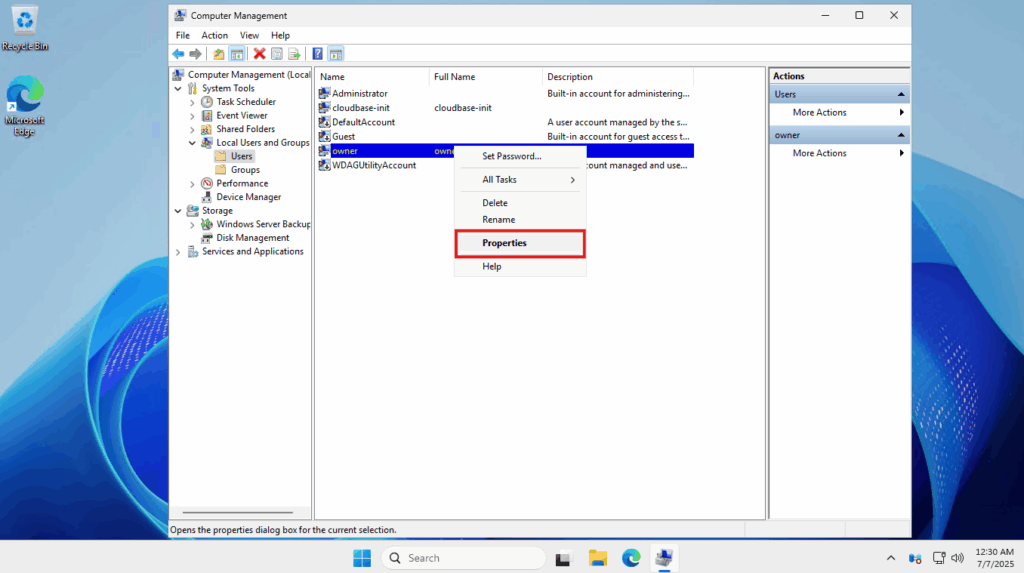
- After the user has been created, we now need to give it administrator permissions. To do this, we need to add it to the “Administrators” user group. Right-click on the user that you just created ->click Properties
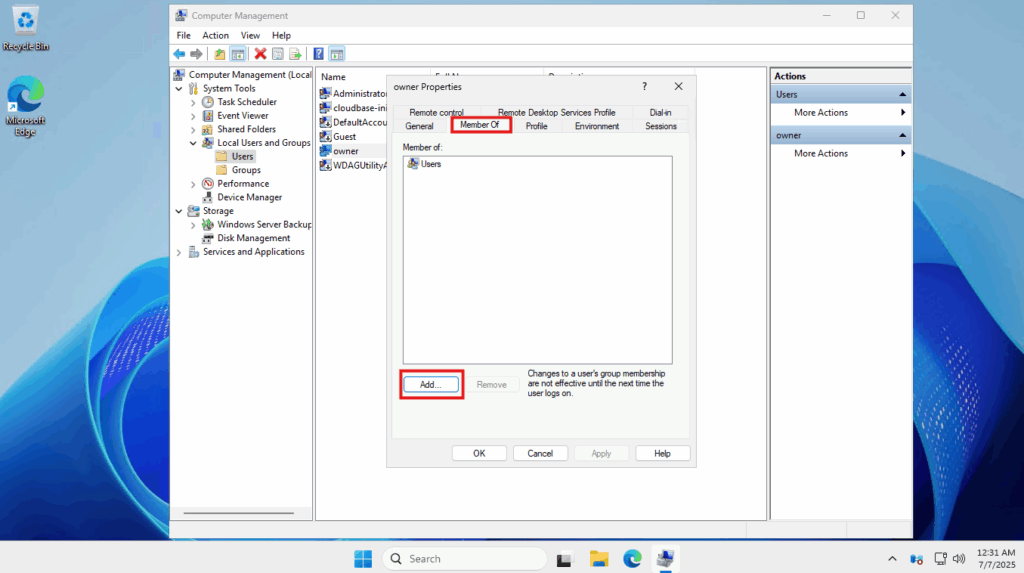
- Go to the Members Of tab and click on Add
- Underneath Enter the object names to select, you will want to add Administrators. Click on the Check Names button on the right to see if the user group you entered matches
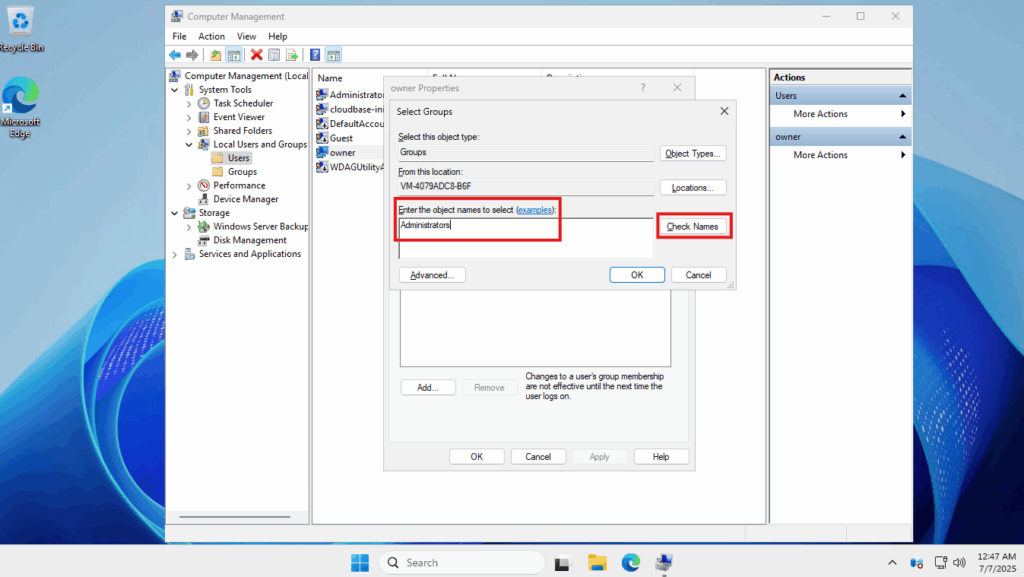
- Once it successfully finds that user group, it will change the name accordingly. Click OK to close and OK once again to save your changes
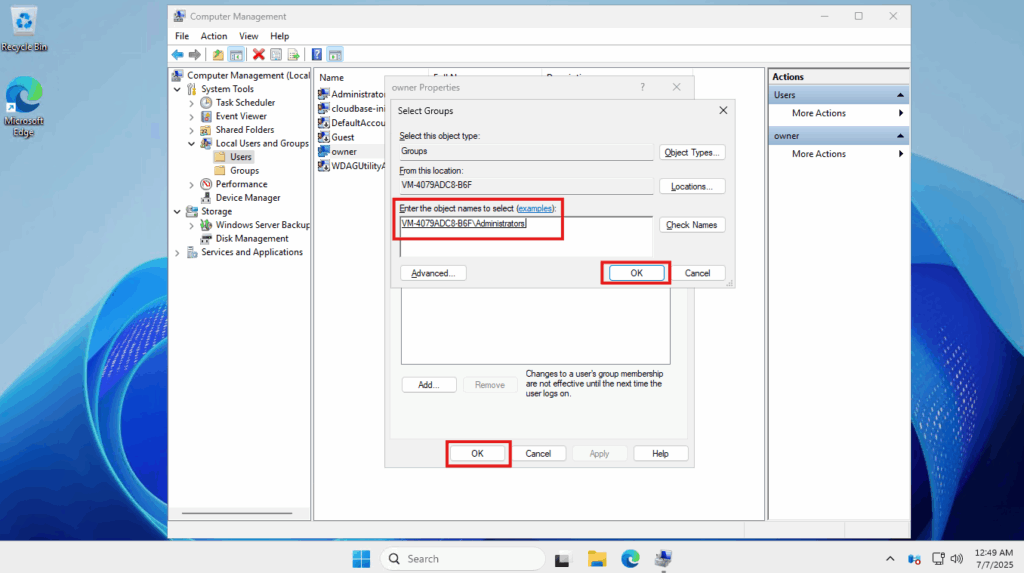
You have now added a secondary administrator user to this Windows Server installation.
Locking down the RDP Port to only specific IP addresses
The ultimate solution to not getting locked out of your server is to lock down the RDP port using an allowlist. This can be accomplished with Windows Firewall. This makes it so that only the IP addresses on that allowlist are allowed to connect to the RDP port. All other IPs will not be able to connect. Follow the steps from this article to proceed.