Windows Server is a very popular choice for an Operating System when it comes to servers. It is popular because of how easy it is to use and how well it works with Windows Desktop computers.
One of the features often used on Windows Server is the Remote Desktop Protocol (RDP), which allows you to use a remote server just as if you were sitting in front of it with a keyboard, mouse and monitor.
While this service can indeed be very useful, it is very important to secure it from bad actors on the internet, such as hackers and the automated software bots they operate. By default, the RDP port 3389 is not secure, and anyone on the internet can attempt to connect to it.
To combat this, it is generally good practice to limit access to the RDP port on your server to only a limited set of IP addresses which you know you will be accessing this server. These IP addresses can be added to an allowlist in Windows Firewall, and it will only allow those IP addresses to connect to your server via RDP.
Follow the steps below to create this allowlist step by step.
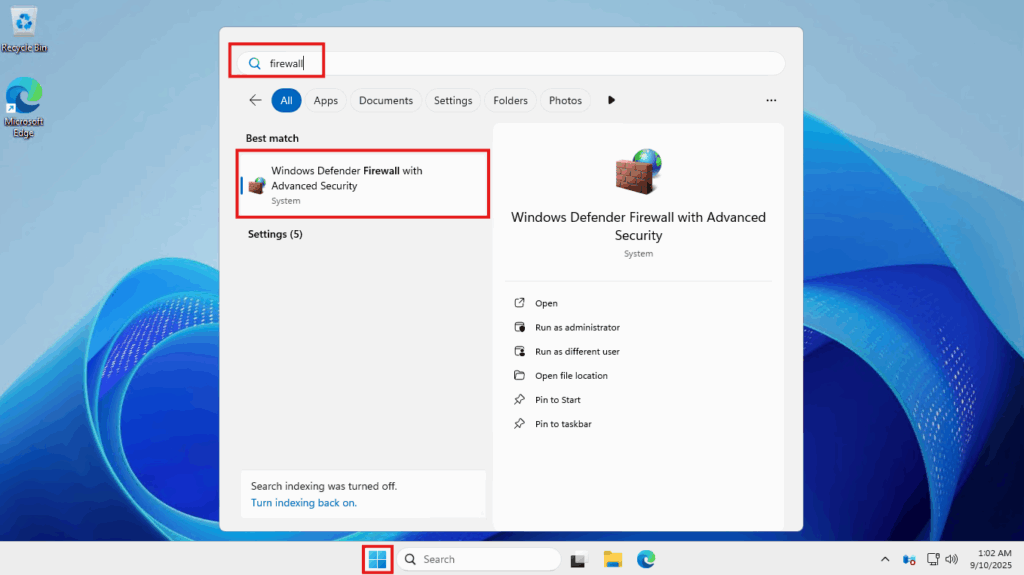
- Click on the Start menu and search for “firewall”
- To search, you just start typing once you have the start menu open
- The top result should be Windows Defender Firewall with Advanced Security. Click on that option
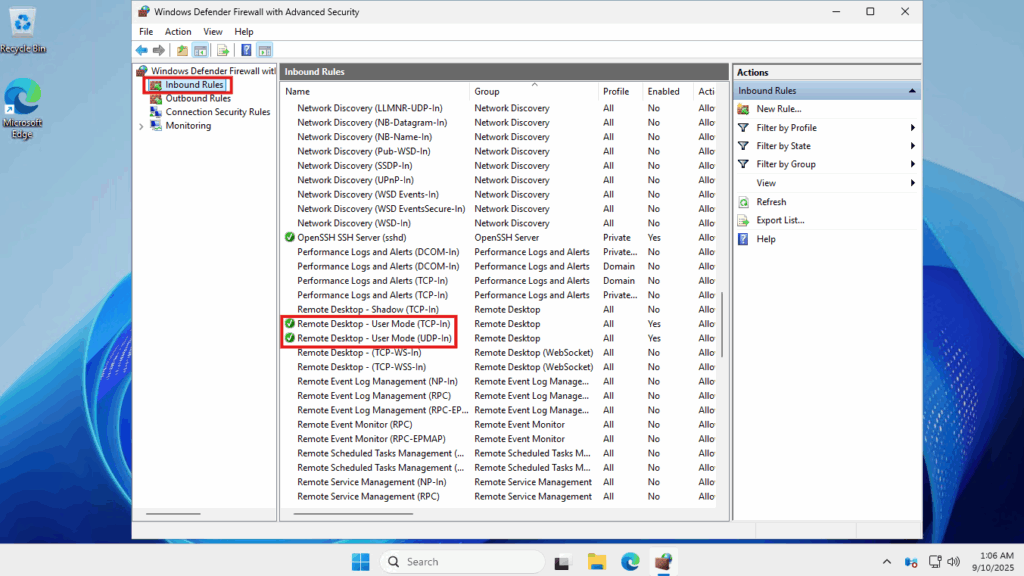
- Once the new window opens, click on Inbound Rules on the left panel
- Scroll down in the centre column and look for the rules named Remote Desktop – User Mode (TCP-in) and Remote Desktop – User Mode (UDP-in). These rules are already defined with a normal Windows install
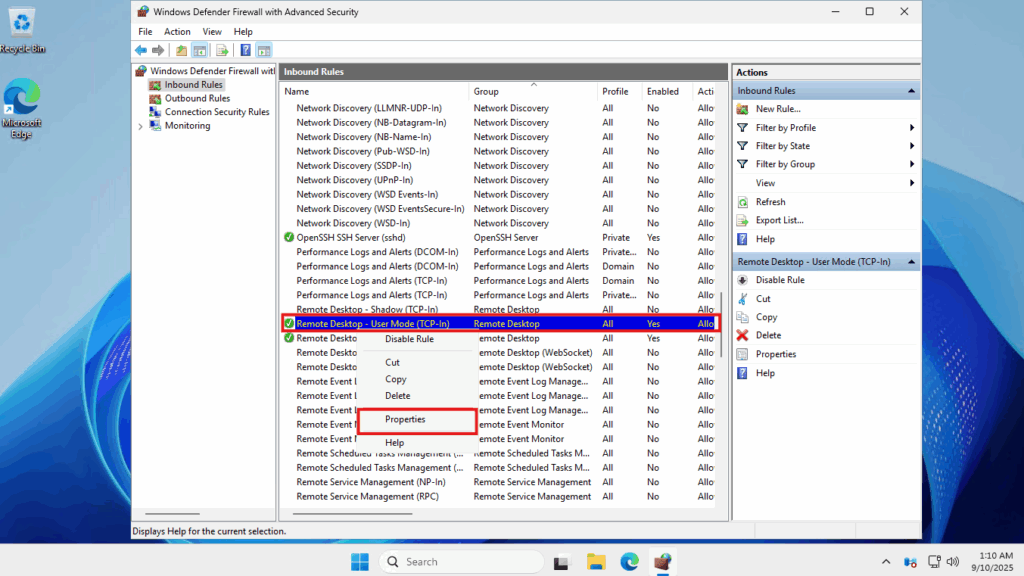
- Right-click on Remote Desktop – User Mode (TCP-in) -> select Properties
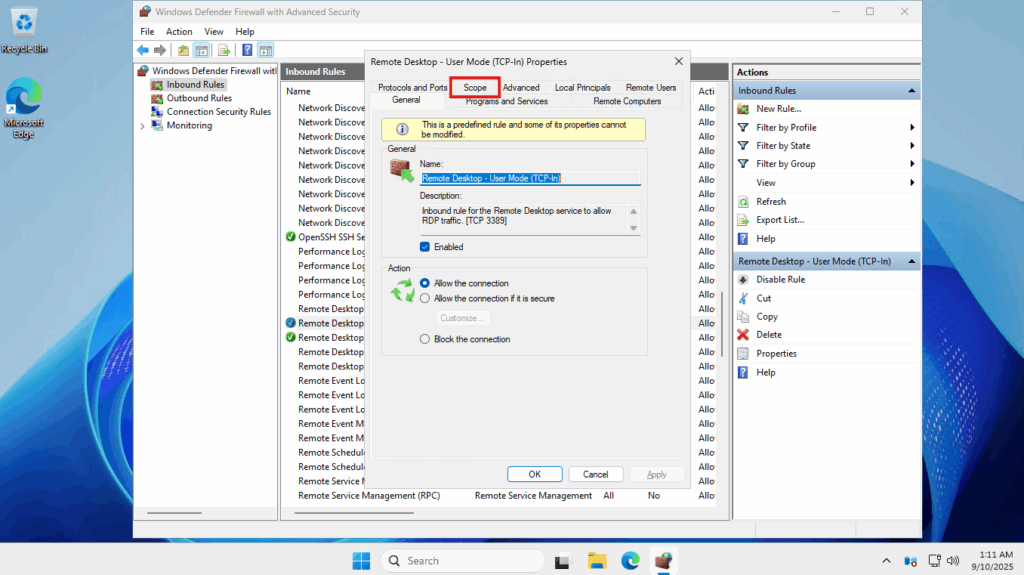
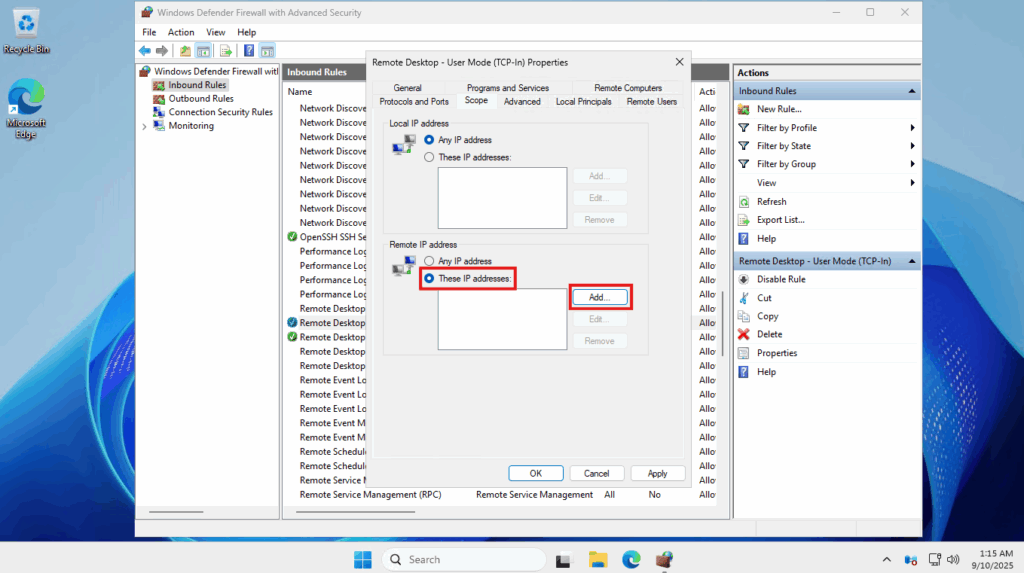
- Click on the Scope tab at the top
- Under the section Remote IP Address, select These IP addresses and then click to Add
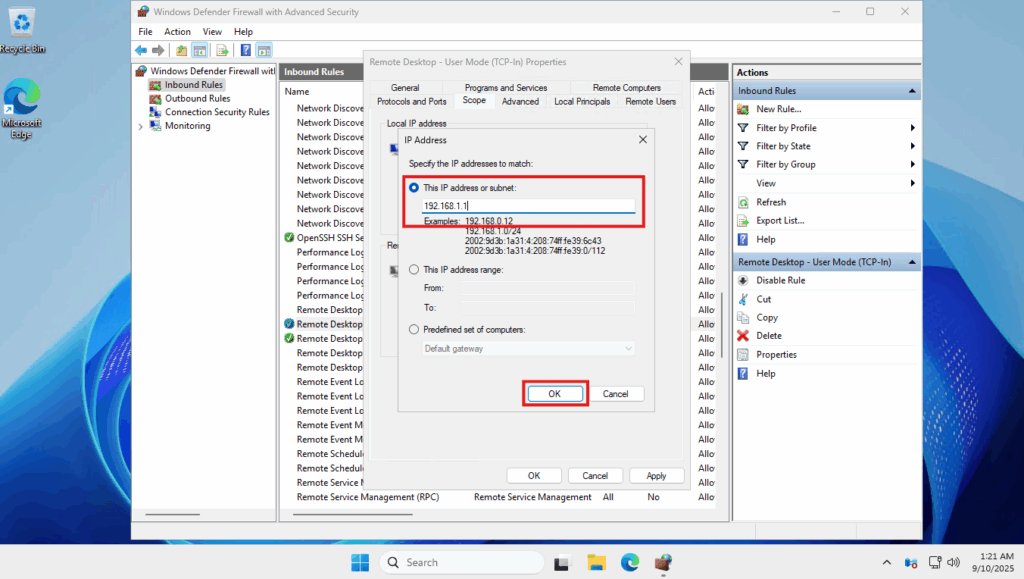
- Add the IP address that you want to add to the whitelist.
 For this example, we will use 192.168.1.1 as the IP. Please add here the public IP address that you want to add to the whitelist
- Click OK
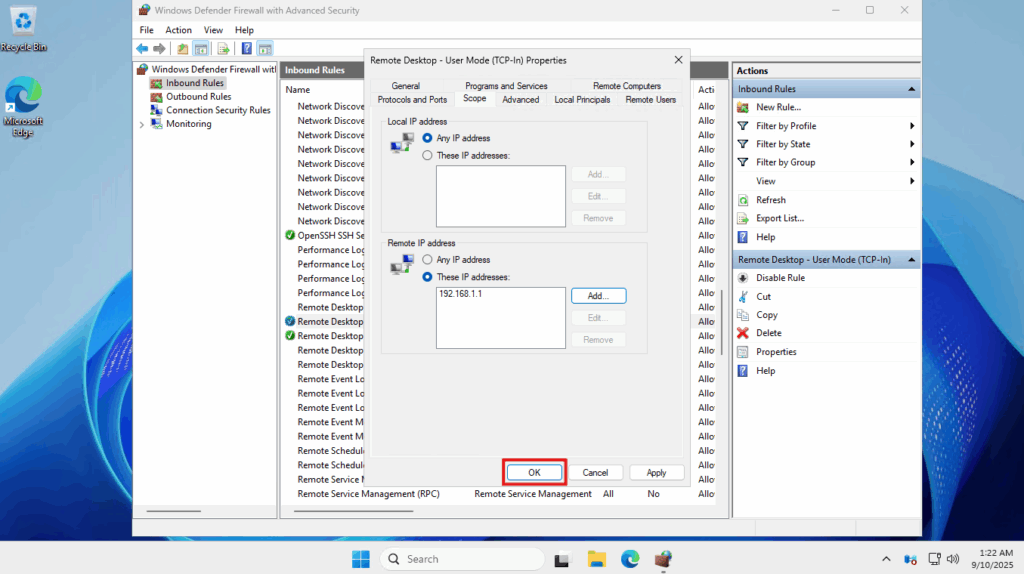
- Repeat steps 5 and 6 if you want to add more than one IP to the whitelist. If done, click OK to continue
- Repeat steps 3-7 for the second rule called Remote Desktop – User Mode (UDP-in)
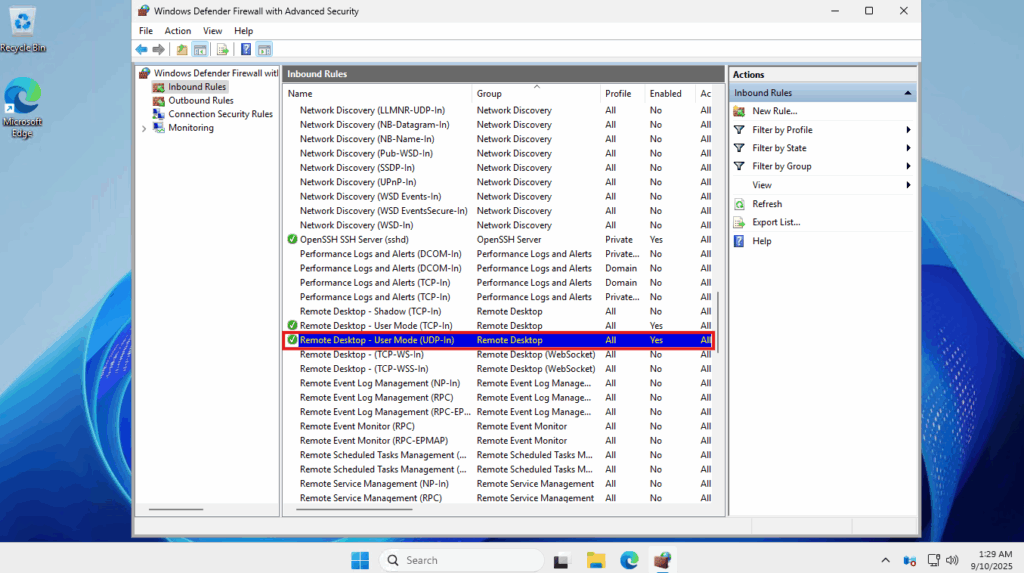
Once you have done that, you will have successfully locked down your RDP port to only specific IP addresses.